
There is no incognito history to open. When you close the last private window, the browser discards the list of pages you visited together with the cookies and site data of that session, and no setting or tool brings them back. This is how Incognito in Chrome, Private Browsing in Firefox and Safari, and InPrivate in Microsoft Edge all work.
Private mode only covers what the browser itself would have saved. A few traces stay outside of it: on your computer, in your accounts and on the network. This guide shows where they are and how to remove the ones you can.
- What private mode deletes and what it keeps
- Where traces of private browsing remain
- What the DNS cache shows on Windows
- How to clear the DNS cache on Windows
- How to clear the DNS cache on macOS
- Incognito history on Android
- Private Browsing history on iPhone and iPad
- For parents: controls that work in the open
What private mode deletes and what it keeps
A private session ends when you close every private window, not just one of them. At that moment the browser removes:
- the pages you visited, so nothing is added to History or to the address bar suggestions
- cookies and site data, which signs you out of every site you signed in to during the session
- what you typed into forms and search boxes
- in Firefox and Safari, the entries in the downloads list
It keeps:
- files you downloaded
- bookmarks you added (favorites in Edge), and in Chrome also pages you saved to the reading list
- in Firefox, passwords you chose to save
Private mode does not hide your browsing from anyone outside your computer. Google’s page on Incognito mode says that websites, your employer or school and your internet provider may still be able to see your activity. Mozilla’s page on Private Browsing adds that it does not protect you from keyloggers or spyware installed on the computer.
Where traces of private browsing remain
- Private windows left open. Anyone who sits down at the computer can read the open tabs. Close all private windows when you finish. In Safari on Mac you can also lock them with Window → Lock All Private Windows, after you turn on the password or Touch ID requirement in Safari → Settings → Privacy.
- Downloaded files. They stay in your Downloads folder. Delete the files, then empty the Trash or the Recycle Bin.
- Bookmarks and reading list. A page you saved in a private window appears among your normal bookmarks. Delete it there.
- The DNS cache of the operating system. It can hold the names of sites the computer looked up recently. The next sections show what it contains and how to empty it.
- An account you signed in to. If you sign in to your Google Account in a private window, your search activity may be saved to that account. Review and delete it in My Activity. Any other site you sign in to also knows it was you.
- Extensions allowed in private windows. Browsers keep extensions out of private windows unless you allow them. One that is allowed can see the pages you open there and may keep its own records. Our guide to extensions in private windows shows where the switch is in each browser.
- The network. Your router, your internet provider and the administrator of a work or school network can log which sites a device connects to. You cannot delete those records. A VPN or Tor changes who can see them: see does incognito mode hide your IP address.
- Monitoring software. Private mode does nothing against a program that records the screen or the keyboard. On a work computer, assume the employer can see what you do. See how to tell if your computer is being monitored.
Kingpin, our private browser for Mac, is private by default: cookies and site data stay in memory only, and by default nothing is remembered after you quit. The same limits apply to it. It does not make you anonymous and it does not hide your IP address in normal tabs.
What the DNS cache shows on Windows
Before a browser can open a site, the computer has to look up the site’s IP address. Windows remembers recent lookups in its DNS cache. The cache belongs to Windows, not to the browser, so closing an Incognito window does not empty it. This is the “loophole” that many articles about incognito history describe. It is much smaller than it sounds:
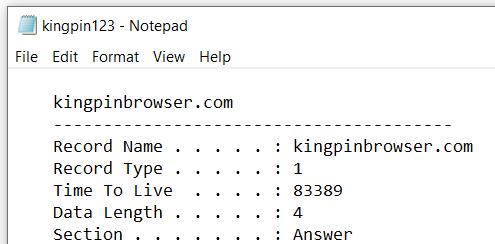
- The cache lists host names such as example.com. It does not show pages, searches or the time of a visit.
- It holds lookups from every app on the PC and cannot tell a private window from a normal one.
- Each entry disappears by itself when its Time To Live runs out.
- Chrome and Firefox can look names up over an encrypted connection (Use secure DNS in Chrome, DNS over HTTPS in Firefox). Lookups made this way can bypass the Windows cache, so the sites you opened may not be listed at all.
To see what is in the cache on your own PC:
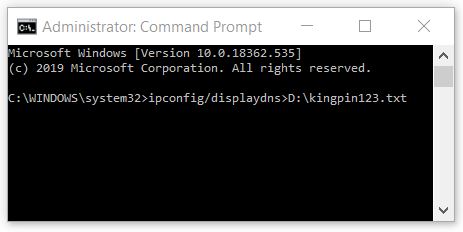
- Select Search on the taskbar and type command prompt. Next to Command Prompt, select Run as administrator, then Yes.
- Type ipconfig /displaydns and press Enter.
- The list is long. To read it in Notepad, send it to a text file by adding a file name, for example ipconfig /displaydns > D:\kingpin123.txt, and open that file. Use a drive and folder that exist on your PC.
How to clear the DNS cache on Windows
- Open Command Prompt as administrator, as in step 1 above.
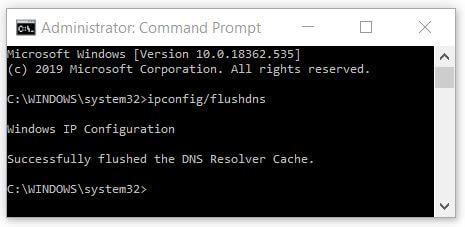
- Type ipconfig /flushdns and press Enter.
Windows answers “Successfully flushed the DNS Resolver Cache.” The command empties only the list of looked-up names. It deletes no files and no browser data, and Windows fills the cache again as you use the internet. Microsoft describes both commands in its ipconfig reference.
How to clear the DNS cache on macOS
macOS keeps a cache of DNS answers too. Apple’s support article Reset the DNS cache in OS X gives one Terminal command for OS X 10.10.4 and later. Apple has archived the article and no longer updates it.
- Open Terminal. It is in the Utilities folder inside Applications, or you can find it with Spotlight.
- Type sudo killall -HUP mDNSResponder and press Return.
- Enter your administrator password when Terminal asks for it and press Return.
The command tells the DNS service of macOS to drop its cache. It deletes no files. The same article says that restarting the Mac also updates the cached information.
Incognito history on Android
Chrome on Android keeps no list of the pages you opened in Incognito, so there is nothing to view later. What can still be seen on the phone:
- Incognito tabs that are still open. Google’s help page warns that anyone who uses your device can access them. Close them in the tab switcher, or turn on Settings → Privacy and security → Lock Incognito windows when you leave Chrome.
- Downloads and bookmarks. They are kept, as on a computer.
- Activity in an account. If you signed in to a Google Account in an Incognito tab, check My Activity for that account.
Private Browsing history on iPhone and iPad
In Private Browsing, Safari does not remember the pages you visit, your search history or your AutoFill information. No screen in Settings lists them afterward. Private tabs stay open until you close them, so close them when you finish, or let Safari lock them: Apple explains how in Turn Private Browsing on or off on your iPhone. Downloaded files stay on the device.
For parents: controls that work in the open
Some guides answer this question with apps that hide on a phone or computer and report everything to another person. We do not recommend any of them. That is stalkerware, and installing a hidden monitoring app on another adult’s device without their consent is illegal in many countries. If you think someone has put such an app on your own device, the U.S. Federal Trade Commission explains how to recognize stalkerware and what to do about it.
A parent does not need to recover a child’s incognito history. Every big platform has parental controls that the child can see: the child has their own child account, is told when something is blocked and can ask you for permission.
- Android and Chromebook: Google Family Link. You can filter or block sites in Chrome, approve apps and set screen time limits. Incognito mode is turned off while the child is signed in to Chrome with an account managed by Family Link.
- iPhone, iPad and Mac: Screen Time. With Family Sharing and a Child Account you can approve or block websites and apps and decide when the device can be used.
- Windows and Xbox: Microsoft Family Safety. Its web and search filters work in Microsoft Edge while the child is signed in with their Microsoft account. When the filter is on, other browsers are blocked unless you unblock them.