Kingpin 3.0 adds Tor tabs. A Tor tab reaches websites through the Tor network, so the site sees a Tor address and not your IP address. You open one with File → New Tor Tab. There is nothing to install or set up: the Tor program is built into Kingpin.
What a Tor tab does
In a normal tab, every site you open sees your IP address. It shows roughly where you are and which internet provider you use. Your internet provider, in turn, can see which sites you connect to.
A Tor tab takes a detour. The connection goes through a chain of relays run by volunteers, encrypted in layers. The Tor Project describes the result: your internet provider can only see that you are talking to Tor, and the website only sees that it is being contacted by Tor.
In Kingpin that means:
- Sites see a Tor address, not yours.
- Nothing you do in a Tor tab is sent another way.
- Kingpin runs Tor only while a Tor tab is open.
- Data from Tor tabs is deleted when you close the last one.
- Ad and tracker blocking stays on, as in every other tab.
How to open a Tor tab
- Choose File → New Tor Tab.
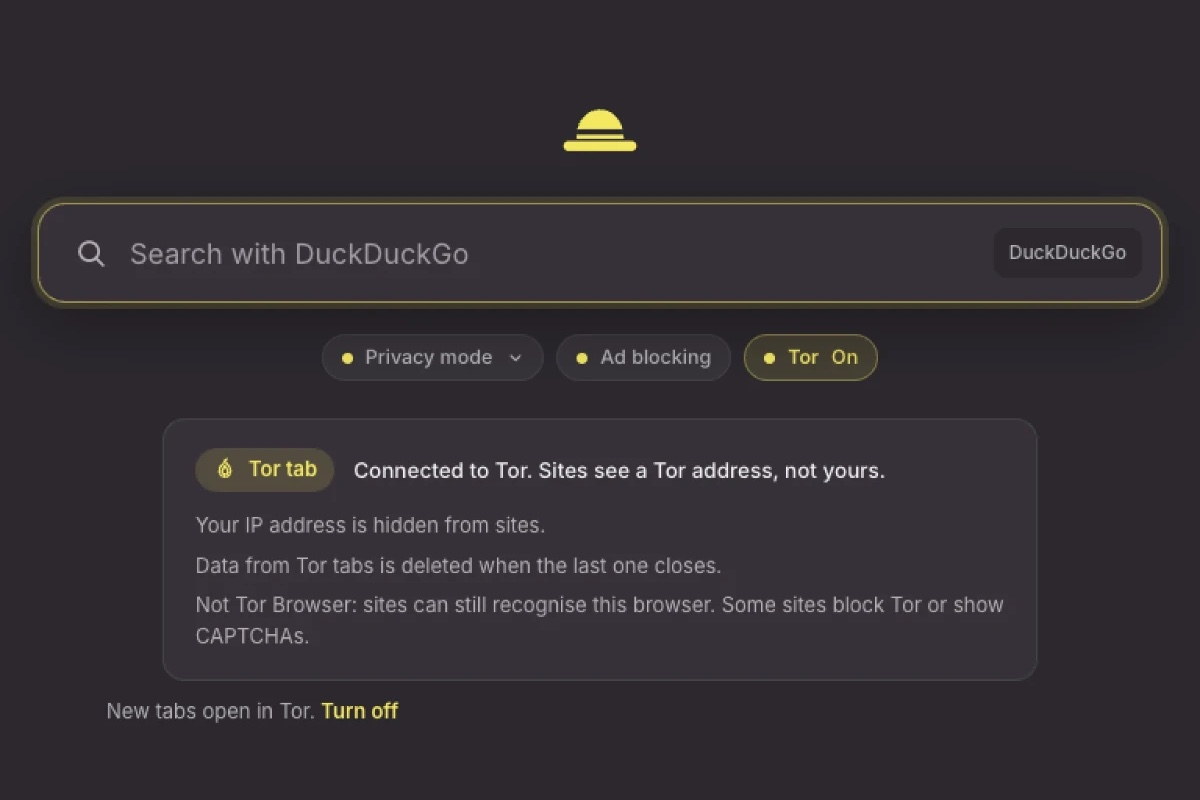
- The new tab tells you when it is ready: “Connected to Tor. Sites see a Tor address, not yours.”
- Search or type an address as usual.
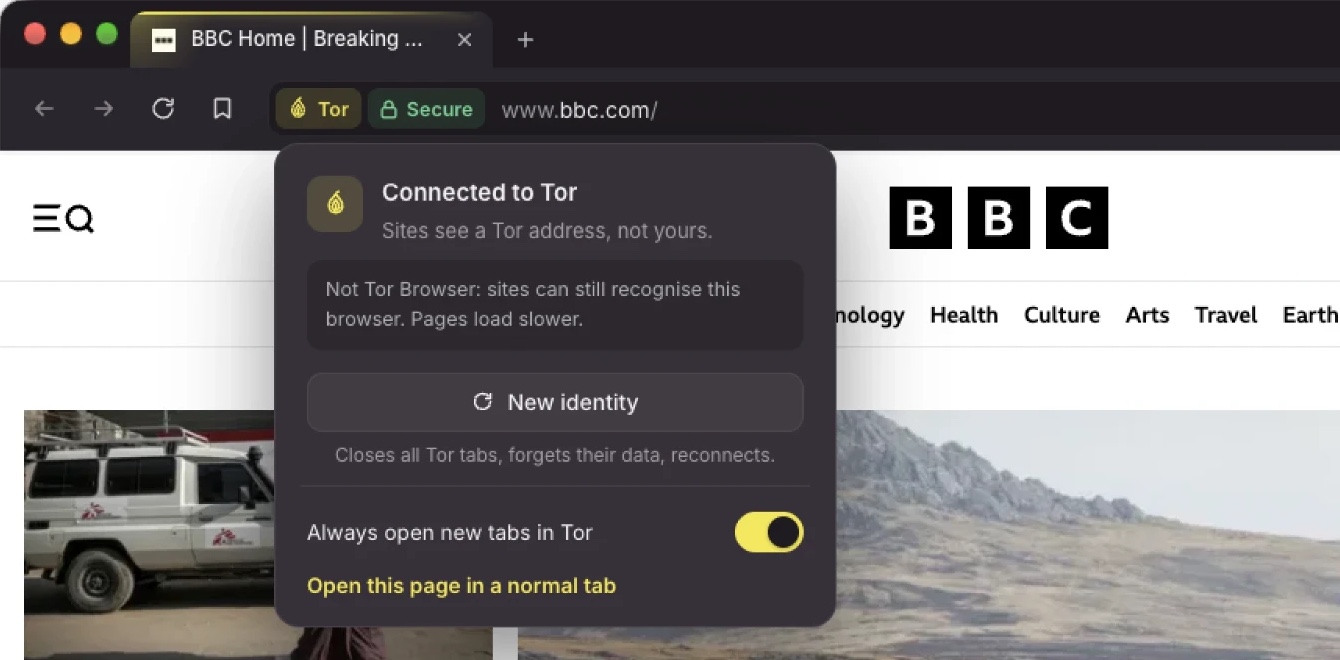
You can tell a Tor tab by the yellow Tor badge at the start of the address bar. Click the badge to open the Tor panel, shown in the picture at the top of this post.
What the Tor panel offers
- New identity. Closes all Tor tabs, forgets their data and reconnects. Use it when you want a clean start.
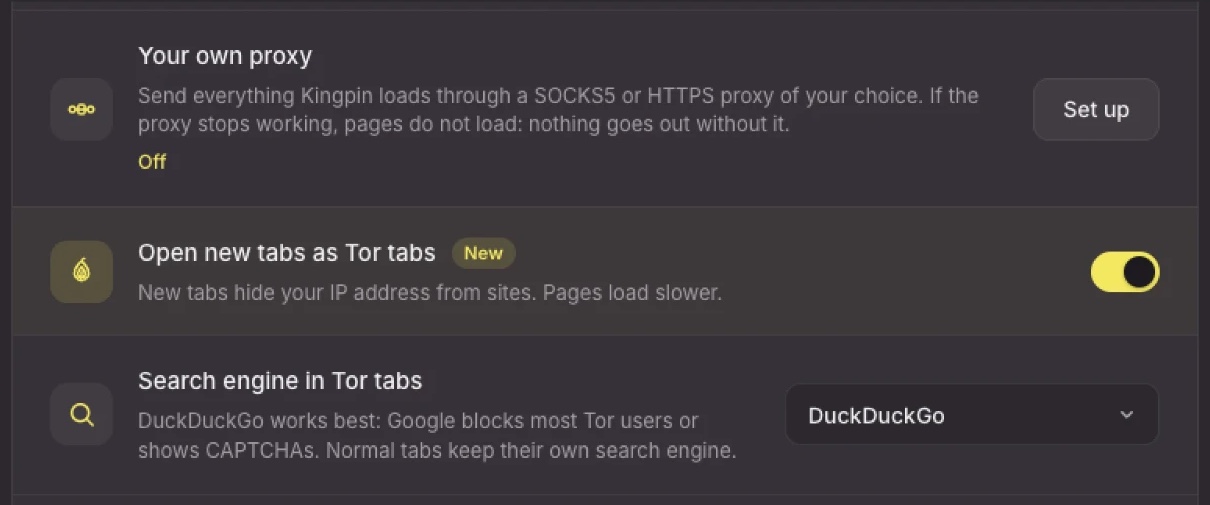
- Always open new tabs in Tor. Every new tab is then a Tor tab. The same option is in Settings → Privacy → Open new tabs as Tor tabs, and the new tab page lets you turn it off again.
- Open this page in a normal tab. For a site that blocks Tor, or one you want at normal speed. In the normal tab the site sees your IP address again.
Search in Tor tabs
Tor tabs have their own search engine, set in Settings → Privacy → Search engine in Tor tabs. DuckDuckGo works best there, because Google blocks most Tor users or shows them CAPTCHAs. Normal tabs keep the search engine you chose for them.
What a Tor tab does not do
- It is not Tor Browser. A Tor tab hides your IP address, but sites can still recognize the browser by other signs, such as your system and fonts. Tor Browser is built to make all its users look alike. Kingpin is not.
- Pages load slower. The detour through the relays takes time. Our post on why Tor is slow explains the reasons.
- Some sites block Tor or show CAPTCHAs. Open such a page in a normal tab if you need it.
- Signing in tells the site who you are. A hidden IP address does not change that.
- Normal tabs stay as they were. Only Tor tabs go through Tor. In a normal tab, sites see your IP address.
The Tor Project itself recommends against using Tor in any browser other than Tor Browser, because other browsers were not designed with Tor’s protections in mind. We agree with the reasoning. Use a Tor tab when you want to keep your IP address from the sites you visit in everyday browsing. When your safety depends on staying anonymous, use Tor Browser.
Tor tab or your own proxy
Kingpin can also send everything it loads through a SOCKS5 or HTTPS proxy of your choice, under Settings → Privacy → Your own proxy. If the proxy stops working, pages do not load, so nothing goes out without it. A proxy is usually faster than Tor, but the proxy’s operator can see where you connect. With Tor, no single relay knows both who you are and which site you open.
Neither is a VPN. A Tor tab and the proxy cover what Kingpin loads, not the other apps on your Mac.
How to get Kingpin 3.0
Kingpin 3.0 is in the Mac App Store and needs macOS 13 or later. If you already have Kingpin, it comes as an update: open the App Store and click Updates. The release notes for version 3 also list a redesign, more security features and performance improvements.
The home page shows what else Kingpin does, and the privacy policy lists what the app sends over the internet, including Tor tabs.